How to enable OneTrust Privacy Notice on WSF
This guide separates the work between the Data Privacy Officer and the WSF support team. The Data Privacy Officer does all work in OneTrust and Decareto. The WSF support team does all work in WSF.
Decareto is optional. If you want Decareto to supply the notice text, follow section 5 as well.
Who does what
Data Privacy Officer (OneTrust and Decareto)
- Owns the privacy notice content and approvals.
- Creates, edits, and publishes the notice in OneTrust.
- Copies the published and draft OneTrust snippets.
- If Decareto is required, obtains the Decareto script and adds the Decareto placeholder to the OneTrust notice.
- Opens the WSF support ticket and supplies all required values.
- Confirms the completed notice displays the expected content.
WSF support team
- Does not create or edit the privacy notice in OneTrust.
- Enables and configures the WSF CH Ot Privacy Notice module.
- Creates and places the OT privacy notice block on the requested WSF page.
- If Decareto is required, configures the supplied Decareto script to load after the OneTrust notice.
- Verifies the published or DRAFT behavior for the site domain.
1. Data Privacy Officer: create the privacy notice in OneTrust
OneTrust calls this Privacy Notice Management. If your tenant uses the Policy module, the same screens sit under a menu named Policy.
- Open Privacy Notice Management > Privacy Notices.
- Click Create privacy notice.
- Choose Create custom privacy notice, or start from the gallery.
- Fill in name, description, managing organization, default language, owners, approvers, and dates.
- Click Create.
Docs:
- Managing Privacy Notices covers creating a custom notice.
- Using the Privacy Notice Gallery covers starting from a template.
- Building and Editing Privacy Notices covers sections, settings, and publish.
2. Data Privacy Officer: publish and copy the OneTrust snippets
Add your content in the Notice Builder, then publish. The integration snippets are created the first time you publish. Later publishes update the same snippets. You do not replace them on the site after each content change.
- Open the notice.
- Go to the Integration tab.
- Copy the published snippet and the draft snippet.
Doc: Integrating Privacy Notices.
Published snippet.
LoadNotices points at .../published/privacynotice.json.
<!-- OneTrust Privacy Notice start -->
  <!-- Container in which the Privacy Notice will be rendered -->
  <div id="otnotice-7722a11c-9fcc-4dfd-9ab3-495a8ac8db5f" class="otnotice"></div>

  <script src="https://privacyportalde-cdn.onetrust.com/privacy-notice-scripts/otnotice-1.0.min.js" type="text/javascript" charset="UTF-8" id="otprivacy-notice-script">
      settings="eyJjYWxsYmFja1VybCI6Imh0dHBzOi8vcHJpdmFjeXBvcnRhbC1kZS5vbmV0cnVzdC5jb20vcmVxdWVzdC92MS9wcml2YWN5Tm90aWNlcy9zdGF0cy92aWV3cyIsImNvbnRlbnRBcGlVcmwiOiJodHRwczovL3ByaXZhY3lwb3J0YWwtZGUub25ldHJ1c3QuY29tL3JlcXVlc3QvdjEvZW50ZXJwcmlzZXBvbGljeS9kaWdpdGFscG9saWN5L2NvbnRlbnQiLCJtZXRhZGF0YUFwaVVybCI6Imh0dHBzOi8vcHJpdmFjeXBvcnRhbC1kZS5vbmV0cnVzdC5jb20vcmVxdWVzdC92MS9lbnRlcnByaXNlcG9saWN5L2RpZ2l0YWxwb2xpY3kvbWV0YS1kYXRhIn0="
    </script>

  <script type="text/javascript" charset="UTF-8">
      // To ensure external settings are loaded, use the Initialized promise:
      OneTrust.NoticeApi.Initialized.then(function() {
        OneTrust.NoticeApi.LoadNotices(["https://privacyportalde-cdn.onetrust.com/storage-container/02000b9d-ff90-463d-a65a-e8c5ed0747d8/privacy-notices/7722a11c-9fcc-4dfd-9ab3-495a8ac8db5f/published/privacynotice.json"]);
      });
    </script>

  <!-- OneTrust Privacy Notice end -->
Draft snippet.
LoadNotices points at .../draft/privacynotice.json.
This copy also includes the language dropdown.
<!-- OneTrust Privacy Notice start -->
  <!-- Language Drop-down element that will control in which language the Privacy Notice is displayed -->
  <div class="ot-privacy-notice-language-dropdown-container"></div>
  <!-- Container in which the Privacy Notice will be rendered -->
  <div id="otnotice-7722a11c-9fcc-4dfd-9ab3-495a8ac8db5f" class="otnotice"></div>

  <script src="https://privacyportalde-cdn.onetrust.com/privacy-notice-scripts/otnotice-1.0.min.js" type="text/javascript" charset="UTF-8" id="otprivacy-notice-script">
      settings="eyJjb250ZW50QXBpVXJsIjoiaHR0cHM6Ly9wcml2YWN5cG9ydGFsLWRlLm9uZXRydXN0LmNvbS9yZXF1ZXN0L3YxL2VudGVycHJpc2Vwb2xpY3kvZGlnaXRhbHBvbGljeS9jb250ZW50IiwibWV0YWRhdGFBcGlVcmwiOiJodHRwczovL3ByaXZhY3lwb3J0YWwtZGUub25ldHJ1c3QuY29tL3JlcXVlc3QvdjEvZW50ZXJwcmlzZXBvbGljeS9kaWdpdGFscG9saWN5L21ldGEtZGF0YSJ9"
    </script>

  <script type="text/javascript" charset="UTF-8">
      // To ensure external settings are loaded, use the Initialized promise:
      OneTrust.NoticeApi.Initialized.then(function() {
        OneTrust.NoticeApi.LoadNotices(["https://privacyportalde-cdn.onetrust.com/storage-container/02000b9d-ff90-463d-a65a-e8c5ed0747d8/privacy-notices/7722a11c-9fcc-4dfd-9ab3-495a8ac8db5f/draft/privacynotice.json"]);
      });
    </script>

  <!-- OneTrust Privacy Notice end -->
Read the WSF fields off those snippets. Use the statement id from the snippet you copy.
| WSF field | Example from the snippets above |
|---|---|
| Privacy notice script URL | https://privacyportalde-cdn.onetrust.com/privacy-notice-scripts/otnotice-1.0.min.js |
| Ot privacy portal ID | 02000b9d-ff90-463d-a65a-e8c5ed0747d8 |
| Statement ID | 7722a11c-9fcc-4dfd-9ab3-495a8ac8db5f |
| Published version settings ID | settings on the snippet whose URL contains /published/ |
| Draft version settings ID | settings on the snippet whose URL contains /draft/ |
The portal id is the folder after storage-container/ in the LoadNotices URL.
The statement id is the id on div.otnotice, without the otnotice- prefix.
3. Data Privacy Officer: send the snippets to WSF
The Data Privacy Officer opens a WSF support ticket. Paste the published snippet and the draft snippet. Use this text and fill in your values.
Please enable the WSF CH Ot Privacy Notice module for this site.

OneTrust snippets are attached (published and draft).
- Privacy notice script URL: https://privacyportalde-cdn.onetrust.com/privacy-notice-scripts/otnotice-1.0.min.js
- Ot privacy portal ID: 02000b9d-ff90-463d-a65a-e8c5ed0747d8
- Statement ID: 7722a11c-9fcc-4dfd-9ab3-495a8ac8db5f
- Published version settings ID: settings value from the /published/ snippet
- Draft version settings ID: settings value from the /draft/ snippet
4. WSF support team: enable the notice on the website
Only the WSF support team performs the steps in this section. The module work item is ADO 50004.
Prerequisite: OneTrust is already enabled on the site.
Install the module
- Log in to the site as an administrator.
- Go to Extend (
/admin/modules). - Install WSF CH Ot Privacy Notice.
Configure the global settings
- Go to Configuration > One Trust Privacy notice > OT privacy notice global configurations.
- Check that these fields are present:
- Enable OT privacy notice (checkbox)
- Show OT privacy notice language dropdown (checkbox)
- Privacy notice script URL
- OT privacy portal ID
- Draft version settings ID
- Published version settings ID
- External Snippet Injection (e.g., Decareto), used only for section 5
- Enter the values from the ticket in each field.
- Check Enable OT privacy notice.
- Check Show OT privacy notice language dropdown if the notice needs a language selector.
- Click Save configuration.
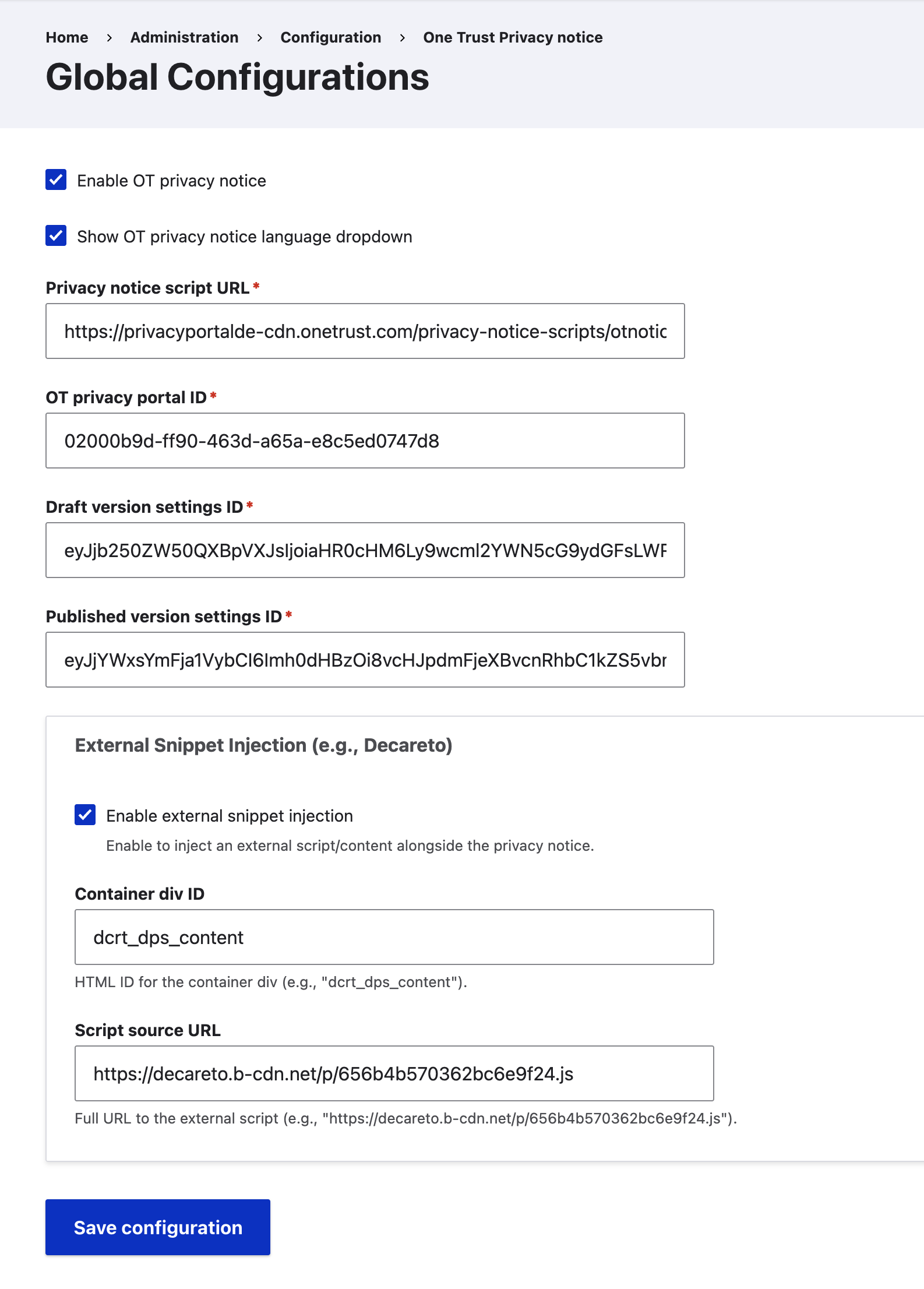
Create the notice block
- Go to Content > Blocks > Add block.
- Choose the OT privacy notice block type.
- Enter the Statement ID from the ticket.
- Save.
Place the block
- Go to Structure > Block layout.
- Add the OT privacy notice block to the DX8 hidden region.
Add the notice to a page
- Go to Content and edit or create a node.
- In Layout Canvas, add a Drupal component.
- Select the OT privacy notice block.
- Publish the node.
- Open the published node on the front-end domain.
Check the result
Whether the notice shows a DRAFT watermark depends on the SSP domain list under Basic site settings.
| Site | Result |
|---|---|
| Akamai (live) site, or any site whose domain is in the SSP domain list | Published notice, no watermark |
| Non-live site whose domain is not in the SSP domain list | Notice with a DRAFT watermark |
Test both directions:
- On a non-live site, add its domain to the SSP domain list after creating the notice. The DRAFT watermark should disappear.
- On an Akamai site, remove its domain from the SSP domain list. The DRAFT watermark should appear.
5. Optional Decareto work
Skip this section if you write the notice content directly in OneTrust.
Decareto supplies the privacy statement text. Its script writes that text into a placeholder inside the OneTrust notice. Everything in sections 1 to 4 stays the same.
Data Privacy Officer: prepare Decareto
Do this before you publish in section 2.
- Obtain the Decareto script URL for the notice.
- Confirm the Decareto content and placeholders are correct.
- Keep the script URL for the WSF support ticket.
Data Privacy Officer: add the placeholder in OneTrust
- Open the notice in the Notice Builder.
- Add a section where the Decareto text should appear.
- Switch that section to code view and insert this element. Do not change the id.
<div id="dcrt_dps_content"></div>
- Save and publish the notice.
Decareto looks up that id and writes the statement HTML into it. If the element is missing, the Decareto script does nothing.
Data Privacy Officer: add Decareto to the WSF ticket
Example:
<script src="https://decareto.b-cdn.net/p/656b4b570362bc6e9f24.js"></script>
The script runs once when it loads.
It fills #dcrt_dps_content only if that element is already on the page.
Add this to the ticket from section 3:
Decareto (optional add-on)
- Script URL: https://decareto.b-cdn.net/p/<snippet-id>.js
- Placeholder already inside the OneTrust notice: <div id="dcrt_dps_content"></div>
- Load the Decareto script after the OneTrust notice renders that placeholder.
WSF support team: enable the Decareto script
- Go to the OT privacy notice Global Configurations page.
- Under External Snippet Injection (e.g., Decareto), check Enable external snippet injection.
- Set Container div ID to
dcrt_dps_content. - Set Script source URL to the exact Decareto script URL supplied in the ticket.
- Click Save configuration.
- Open the page and confirm the Decareto content appears inside the OneTrust notice.
- If the content does not appear, confirm the placeholder exists before changing either system's content.